Introduction
Images are an essential part of modern digital communication. Whether you manage a website, create social media content, design marketing materials, or store personal photos, choosing the right image file format is important. Different formats serve different purposes, and sometimes you need to convert an image from one format to another to improve compatibility, reduce file size, preserve quality, or meet specific platform requirements.
For example, you may want to convert a PNG logo into a WebP image for faster website loading or change a HEIC photo from your smartphone into a JPG file that works on almost every device. Understanding how image conversion works helps you maintain quality while selecting the most suitable format for every project.
This guide explains everything you need to know about converting images between different file formats, including the advantages of each format, common conversion methods, best practices, mistakes to avoid, and tips for preserving image quality.
Why Convert Image File Formats
Different image formats are designed for different purposes. Converting an image allows you to optimize it for a specific use instead of relying on one format for every situation.
Some common reasons for converting images include reducing file size, improving website performance, adding transparency, increasing compatibility with software, preparing files for printing, or meeting upload requirements on websites and social media platforms.
Choosing the correct format ensures better performance and a smoother user experience.
Understanding Popular Image Formats
Before converting an image, it is helpful to understand the strengths of the most common file formats.
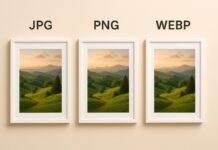
JPG
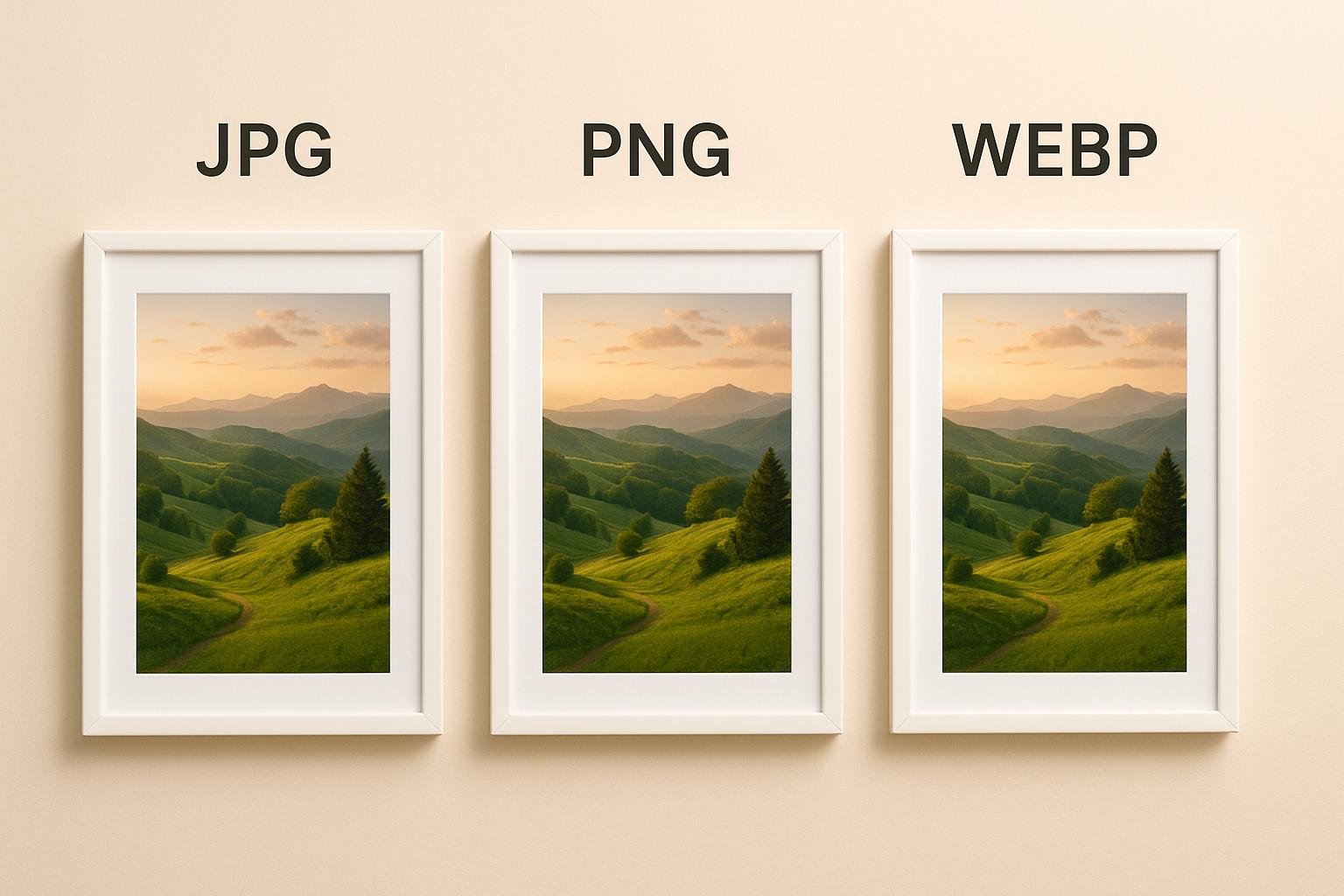
JPG is one of the most widely used image formats. It supports millions of colors and uses lossy compression to reduce file size.
It is ideal for photographs, blog images, product photos, and digital marketing.
PNG
PNG uses lossless compression and preserves every detail of the original image.
It supports transparent backgrounds and is perfect for logos, icons, screenshots, graphics, and illustrations.
WebP
WebP is a modern image format that provides excellent quality while producing much smaller file sizes than JPG and PNG.
It supports both lossy and lossless compression as well as transparency.
WebP is an excellent choice for modern websites.
GIF
GIF supports simple animations and a limited color palette.
It is commonly used for animated graphics, memes, and lightweight animations.
TIFF
TIFF preserves extremely high image quality and is widely used in professional photography, publishing, and printing.
Its file sizes are significantly larger than most web formats.
BMP
BMP stores images with minimal compression, resulting in large file sizes.
Although less common today, it is still supported by many operating systems.
HEIC
HEIC is commonly used by modern smartphones because it stores high-quality images using efficient compression.
Many users convert HEIC files into JPG or PNG for better compatibility.
Benefits of Image Conversion
Converting images correctly provides several advantages.
Improves compatibility with different devices.
Reduces storage space.
Speeds up website loading.
Supports transparent backgrounds.
Optimizes images for printing.
Meets upload requirements for websites.
Enhances search engine optimization.
Makes image sharing easier.
Using the right format improves both quality and performance.
Choosing the Correct Format Before Converting
The first step is deciding what the image will be used for.
Choose JPG for photographs and realistic images.
Select PNG for logos, graphics, screenshots, and transparent images.
Use WebP for websites where loading speed matters.
Choose TIFF for professional printing.
Use GIF only for simple animations.
Selecting the proper destination format prevents unnecessary quality loss.
Convert Images Without Losing Quality
Many users worry that converting images automatically reduces quality.
Quality loss depends mainly on the formats involved.
Converting PNG to PNG or TIFF to PNG generally preserves quality because these formats support lossless compression.
Converting PNG into JPG introduces lossy compression, which may slightly reduce image quality.
Using moderate compression settings helps maintain an excellent visual appearance.
Resize Before Converting
Large images consume unnecessary storage and bandwidth.
Resizing before conversion often creates smaller files while maintaining excellent quality.
Always resize images according to their intended purpose.
Website images usually require much smaller dimensions than printed materials.
Keep the Original Image
Never replace the original image after conversion.
Store the original file safely in case you need maximum quality later.
Keeping originals allows future conversions without repeated quality loss.
Professional designers always preserve their original files.
Preserve Transparency
Transparency is one of the most important considerations when converting images.
PNG and WebP support transparent backgrounds.
JPG does not support transparency.
If a transparent image is converted into JPG, the transparent areas will usually become white or another solid color.
Always choose a format that supports transparency if it is required.
Optimize Images During Conversion
Many image conversion tools allow additional optimization.
You can adjust compression levels.
Resize image dimensions.
Remove unnecessary metadata.
Improve loading speed.
Optimize color profiles.
Applying these settings during conversion produces cleaner and smaller files.
Batch Convert Multiple Images
Converting hundreds of images individually takes time.
Batch conversion allows multiple images to be converted simultaneously.
This approach saves time and ensures consistent output settings.
Batch processing is especially useful for photographers, website owners, online stores, and content creators.
Remove Unnecessary Metadata
Images often contain hidden metadata such as camera information, GPS coordinates, editing history, and timestamps.
Removing unnecessary metadata reduces file size and improves privacy.
Many image conversion tools provide this option during export.
Test Converted Images
Always review converted images before publishing them.
Check for sharpness.
Verify colors.
Inspect transparency.
Confirm dimensions.
Ensure the file opens correctly across different devices.
Testing prevents unexpected quality issues.
Common Image Conversion Mistakes
Many beginners accidentally reduce image quality by making avoidable mistakes.
Converting already compressed JPG files repeatedly reduces quality.
Using the wrong destination format increases file size.
Ignoring transparency causes unwanted backgrounds.
Applying maximum compression introduces visible artifacts.
Deleting original files removes future editing flexibility.
Failing to resize images wastes storage space.
Avoiding these mistakes produces better results.
Image Conversion for Websites
Website performance depends heavily on image optimization.
Converting large PNG or JPG images into WebP often reduces page size significantly.
Smaller images improve loading speed, reduce bandwidth usage, and contribute to better search engine rankings.
Optimized images create a smoother browsing experience on both desktop and mobile devices.
Image Conversion for Social Media
Every social media platform automatically compresses uploaded images.
Converting images into suitable formats before uploading helps preserve quality.
Resize images according to platform recommendations.
Compress them carefully.
Maintain the correct aspect ratio.
Choose a format that balances quality and file size.
This approach results in cleaner and sharper social media content.
Image Conversion for Printing
Printed materials require much higher image quality than websites.
Lossless formats such as TIFF or high-quality PNG files preserve maximum detail.
Maintain high resolution throughout the editing process.
Avoid excessive compression before printing.
Proper preparation ensures professional print results.
Security and Privacy Considerations
When converting personal or business images, protect sensitive information.
Remove metadata containing GPS locations or device information.
Use trusted software for important files.
Maintain backup copies of valuable images.
Secure image management helps protect privacy while preserving quality.
Future of Image File Formats
Image technology continues evolving rapidly.
Modern formats such as WebP and AVIF provide outstanding compression while maintaining excellent visual quality.
As browser support improves, more websites and applications are adopting these advanced formats.
Understanding image conversion today prepares users for future digital standards while improving current workflows.
Best Practices for Image Conversion
Choose the correct destination format.
Keep original files.
Resize images before conversion.
Maintain the correct aspect ratio.
Preserve transparency when needed.
Apply moderate compression.
Remove unnecessary metadata.
Test converted images carefully.
Organize files properly.
Optimize images for their intended use.
Following these best practices helps produce professional-quality images with excellent performance.
Conclusion
Converting images between different file formats is an important skill for photographers, designers, website owners, marketers, and everyday users. The right format improves compatibility, reduces storage space, enhances website speed, preserves image quality, and creates a better viewing experience.
Understanding the strengths of formats such as JPG, PNG, WebP, GIF, TIFF, BMP, and HEIC allows you to choose the best option for every project. By keeping original files, selecting appropriate compression settings, preserving transparency, optimizing images during conversion, and testing the final results, you can achieve high-quality images that look professional across websites, social media platforms, mobile devices, and printed materials.
Making informed decisions about image conversion not only improves visual quality but also creates a faster, more efficient, and more reliable digital workflow for every type of content.